
You can watch a video on how to create a new email at the end of this article.
To create an email, you need to go to the Emails feature in cPanel. This can be done by logging in via:
A) AreaIT “Client Portal” – in this case, you need to click on your service and then select email under “Shortcuts” = "Īsceļi"
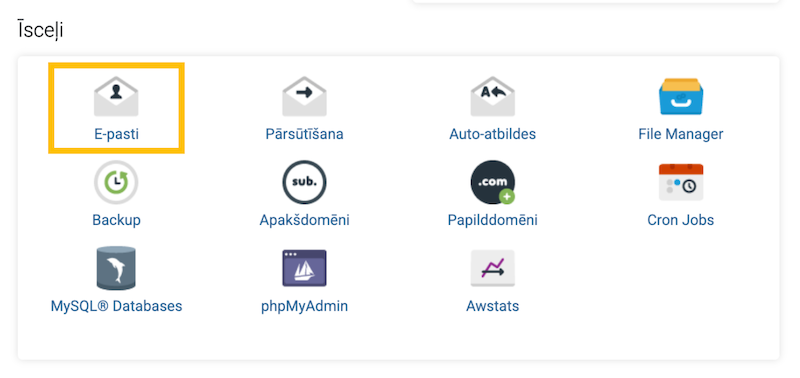
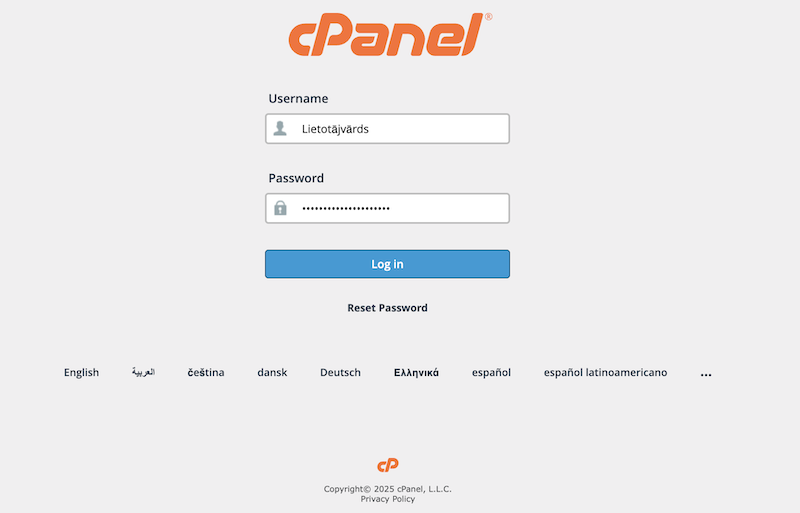
B) cPanel https://Yourdomain.com/cpanel (use your own domain)
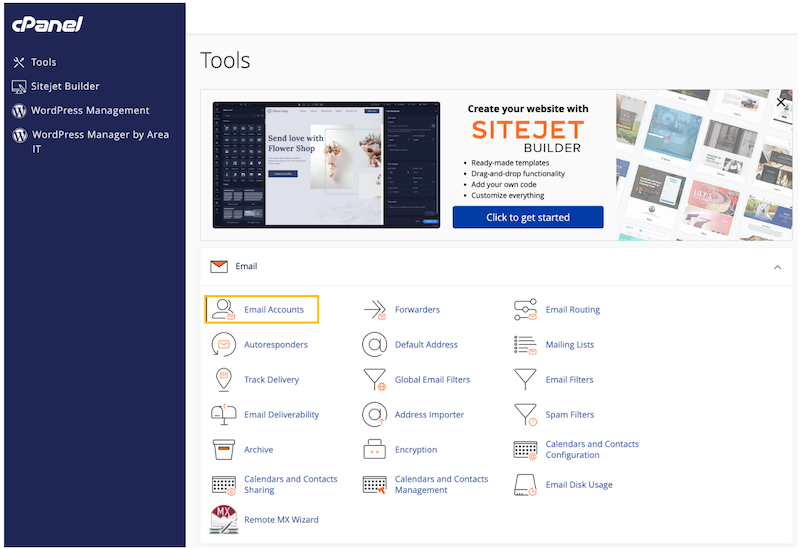
Within your cPanel choose “Email accounts”.
Click the “Create” button.
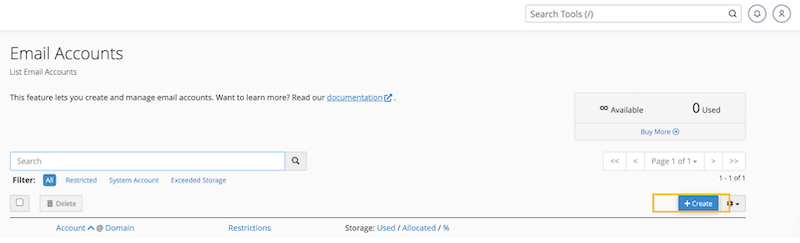
In this form, you have the opportunity to choose an email address, generate a password, and set other email settings.
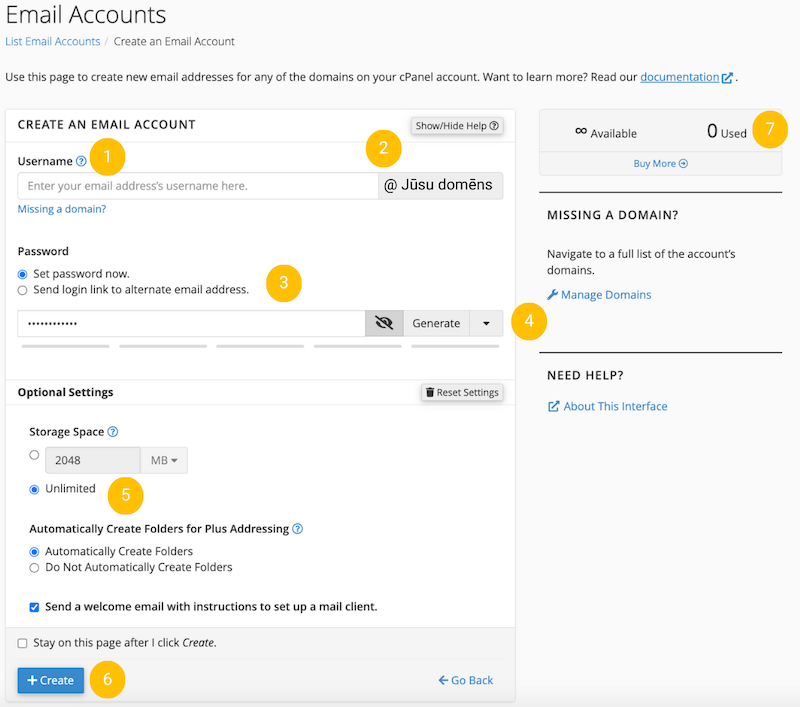
- Choose an e-mail name – the name you want to see before @Your domain, for example info@...., marta@....., marta.lee@..... or etc.
- Here you can see the domain name for which the e-mail is being created.
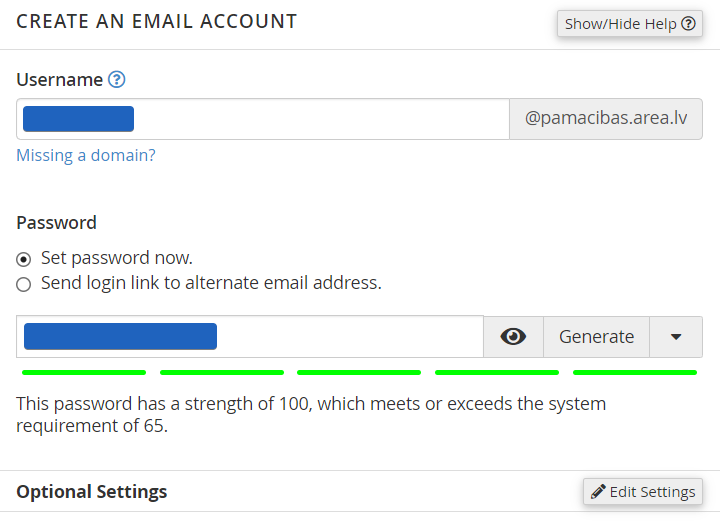
3. Password creation
a) Password generation. To get a strong password, you can choose to generate it. It will include 12 characters, including uppercase, lowercase letters, numbers and symbols.
b) Choose your password. You can also choose your own password. In this case, pay attention to the fact that the system considers it strong.
c) Use an alternative email option. In this case, you need to specify, for example, the private email of the new email owner or another one that he has access to. In this case, a link will be sent to this e-mail and the new email owner will be able to choose what password he wants for his new email. You can view the password by clicking on the eye.
4. Changing the password content settings. You can also change the password settings, such as the password length. By default, the system assumes that the password has 12 characters. You can choose a different number of characters, for example, 14, etc. You can also change its content. By default, the password includes both uppercase and lowercase letters, numbers and symbols, but you can choose to include only lowercase or uppercase letters, only numbers, only symbols.
5. Storage space. By default, the email includes 2048 MB, but we recommend that you use unlimited storage space.
6. Click “Create” to create the email.
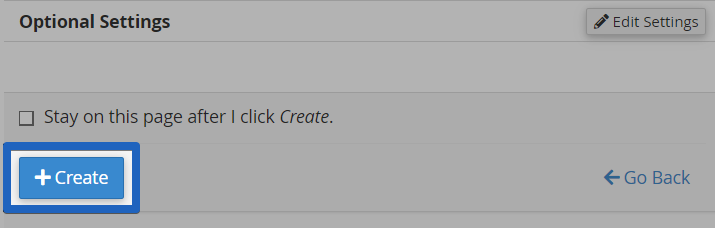
A notification that the e-mail was successfully created will appear.

Below the e-mail creation notification, you will see a list of the e-mails you have created. By clicking "Check Email", you will be able to access your e-mail using a browser.
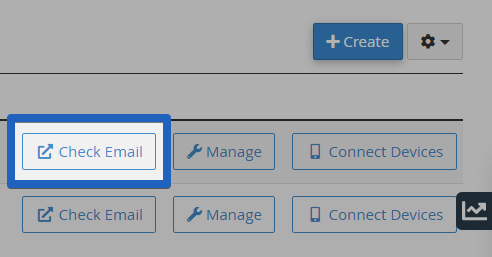
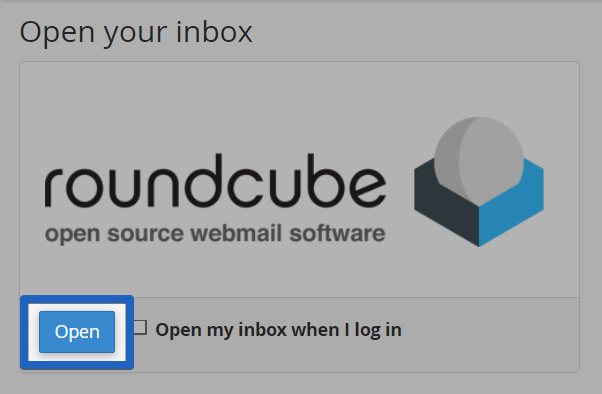
''Check E-mail'' will take you to this browser. Click ''Open''. This will open your e-mail! :)
To avoid having to open the unnecessary browser from the previous step every time, click ''Open my inbox when I log in''.
7. Information about the number of created and available emails.
Video - How to create a new e-mail account


