
Creating an automatic email response may be necessary during the absence of the email owner, for example, vacation, business trip, illness, etc. In this case, you have the opportunity to create an automatic response that will be received by the email sender. In it, you have the opportunity to indicate both the reason for the absence and information about which other person (replacement, colleague, etc.) can be reached or how to contact the company in particularly urgent and/or urgent cases.
Below the article you can find a video about creating an email auto-reply.
Log in to cPanel. https://Yourdomain.com/cpanel (use your own domain)

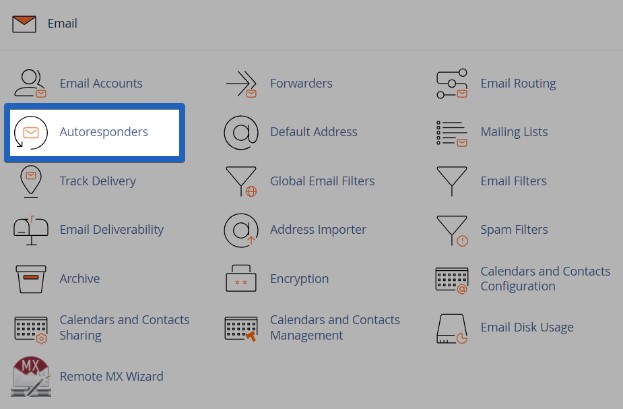
To create an autoresponder, click "Autoresponders" in the "Email" section.
Click on "Add Autoresponder".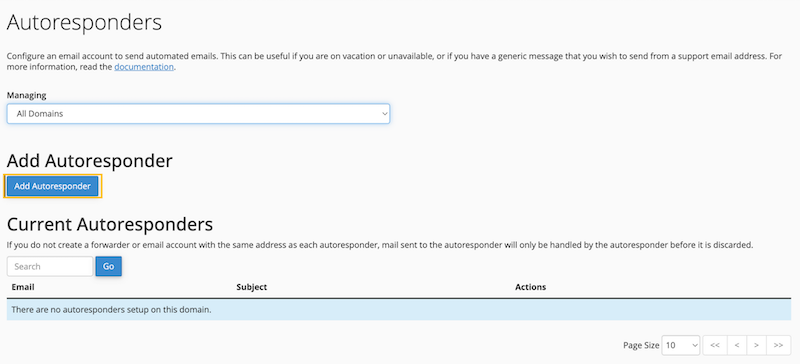
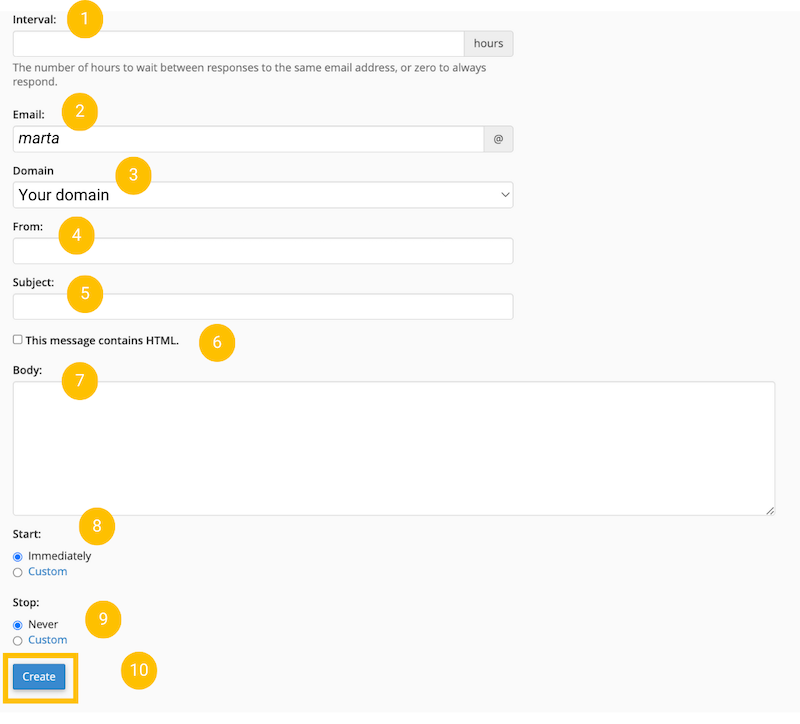
To create an automatic response, you must fill in the following fields:
1. Interval: Specify the interval between sending a response email to the same email. For example: 0 - a response will be sent to every email, 1 - if multiple emails are received from the same recipient within an hour, the response will be sent only once, etc.
2. Email: Select the email from which you want to send automatic responses.
3. Domain: Select the domain to which you want to add the automatic response email. If you only have one domain, it will remain in this field by default.
4. From: Enter the name you want to include in the automatic response so that the recipient knows who they received the response from.
5. Subject: Enter the subject of the email.
6. HTML: Check if the email will include HTML.
7. Body: Enter the response text. For example, that the person is on vacation or something like that.
8. Start: Select ''Immediately'' (automatic replies will be sent immediately as soon as the email is received) or ''Custom'' (specify the time when to start sending replies).
9. Stop: Select ''Never'' (automatic replies will always be sent when the email is received) or ''Custom'' (specify the time when to stop sending replies).
The ''Custom'' section is useful when you will not be available to respond to emails for a certain period of time, for example, when you are on vacation.
10. Click ''Create''' to save the changes. Now you have an automatic reply! :)
Video - how to set up automatic e-mail replay


