
Below the article you can find a video about installing WordPress.
Log in to your cPanel. http://Yourdomain.eu/cpanel

WordPress - Install
- In your cPanel, select the "Wordpress Management" menu on the left toolbar.
- Then select the "Install Wordpress" button
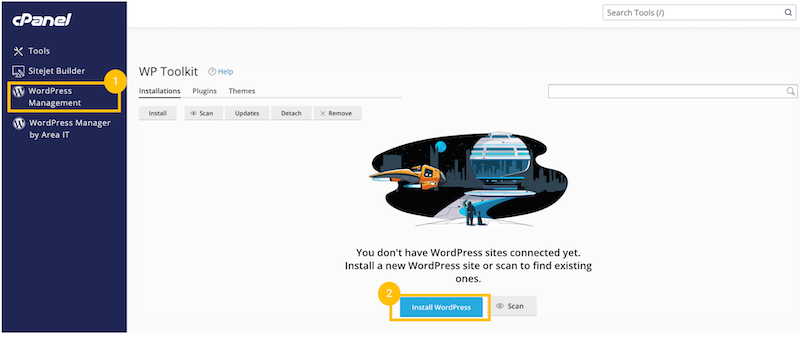
3. The following view will appear on the left side of the screen, where you need to enter information about the future website you want to install WordPress on.
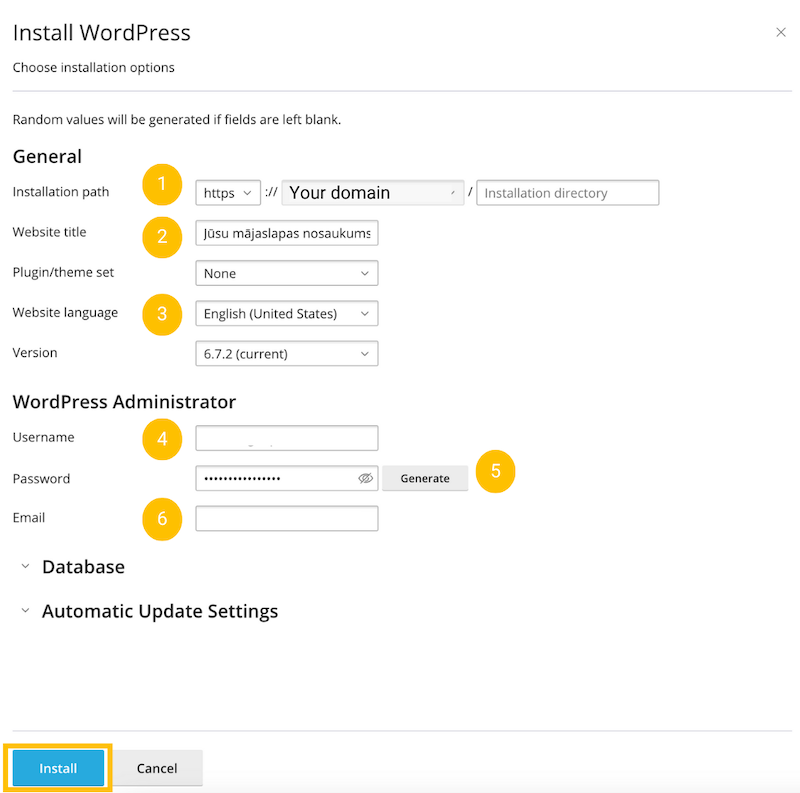
Information you can specify and settings you can change:
1) Your domain - usually this information will remain unchanged. Exceptions, if you have multiple websites, then here you will have to choose which one you want to install WordPress on.
2) Enter the name of your website
3) You can choose a language, including Latvian. Pros of choosing Latvian - all WordPress will use Latvian. Cons - many valuable instructions that may be useful in the future to administer the website are written in English, so it is often more difficult to find translations.
4) Choose a username with which you will log in to the website administration system (CMS)
5) Choose a password, you can generate it. In this case, save it so that you can easily log in to the website administration system (CMS).
6) Choose the email address of the main administrator of the website, for example, your own.
4. Click "Install" to install WordPress.
During the installation, you will see the following screen.
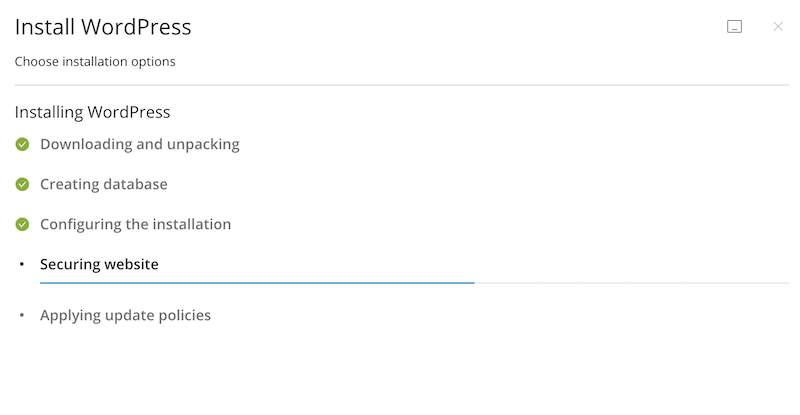
After a successful WordPress installation, the following message will appear on the screen.
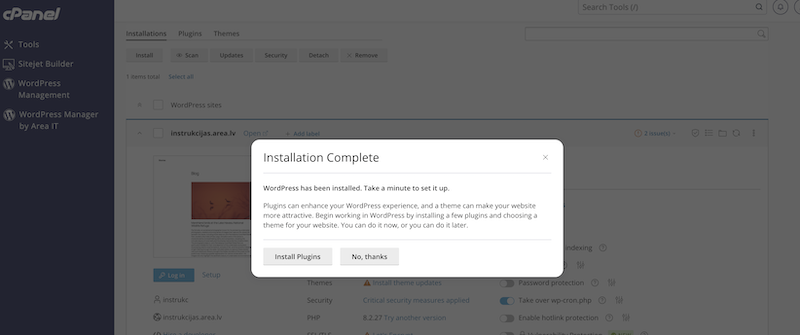
After installing WordPress, you can start working on creating your website.
Video - How to install WordPress


